

A conversion tag can fire perfectly and still tell the wrong story if it tracks the wrong action. A conversion is an action you choose to measure because it matters to your business, such as a purchase, registration or form submission. To learn how to set up conversion tracking properly, define that outcome first, then make sure your tracking records it once, at the right moment.
Conversion tracking can feel technical: tags, triggers and attribution windows all affect the numbers you rely on. But a reliable setup starts with a clear goal. This guide explains how to define conversions, create and test triggers, choose a window that reflects the customer journey, and pass purchase values without duplicate counts. You’ll also learn what to check when recorded conversions don’t match expected actions, so your data can support better campaign decisions.
Key Takeaways
- Use a unique transaction ID to help prevent repeat counts when a purchase page reloads.
- Match the conversion window to the time customers typically take to act after an ad click.
- Test tags against the intended action, and troubleshoot discrepancies before relying on the results.
- When tracking new app users, choose either the install or the first open as the conversion event, not both.
- Review how changes to tracking settings affect the consistency of your campaign comparisons.
Testing and troubleshooting conversion tags
Browser pixels send events from a visitor’s browser, while server-side tracking sends them from a server. Enhanced conversions supplement conversion data with suitably protected first-party information to improve matching.
- Test the tag against one defined action. Open the relevant test tool and complete the action you intend to count, such as reaching a purchase confirmation. Check that the expected event appears once, with the correct name. If it doesn’t appear, confirm the tag is installed on the right page and its trigger matches the action. A purchase event shouldn’t fire just because someone views a product page.
- Check the platform’s conversion status and event details. In Google Ads, review the conversion action’s status and compare it with the event shown in your tag-testing tool. No recent activity can indicate a setup issue, but allow for processing time before treating it as a failure. Confirm the conversion action, event name and destination account match, then test the journey again from the ad landing page to the confirmation screen.
- Use A/B tests to separate tracking issues from campaign performance. Compare similar ads with two audiences, or show two ads to the same audience. Change one variable at a time, such as the audience or creative, so the result is interpretable. Run the comparison for a few days, then review cost per conversion and conversion rate alongside recorded events. If an ad gets clicks but no expected events, investigate its landing-page trigger before judging the creative.
- Test Meta Pixel events against real page actions. Use Meta’s event-testing tools while completing a journey on your site. For example, view a product, add it to the basket, and complete a test purchase if your checkout supports one. Confirm each action reports the corresponding event, rather than sending a purchase event on every page view. If an event is missing, inspect the page or trigger where it should occur, correct the setup and repeat the journey.
- Isolate duplicate or missing events before changing several settings. Compare the event log with the actual steps in a test journey. A purchase appearing twice may mean a browser pixel and server event both report it without deduplication. A missing event may result from a trigger tied to the wrong page or action. Change one suspected cause, repeat the same test, and check whether the event count and details now match.
E-commerce values, transaction IDs, and deduplication
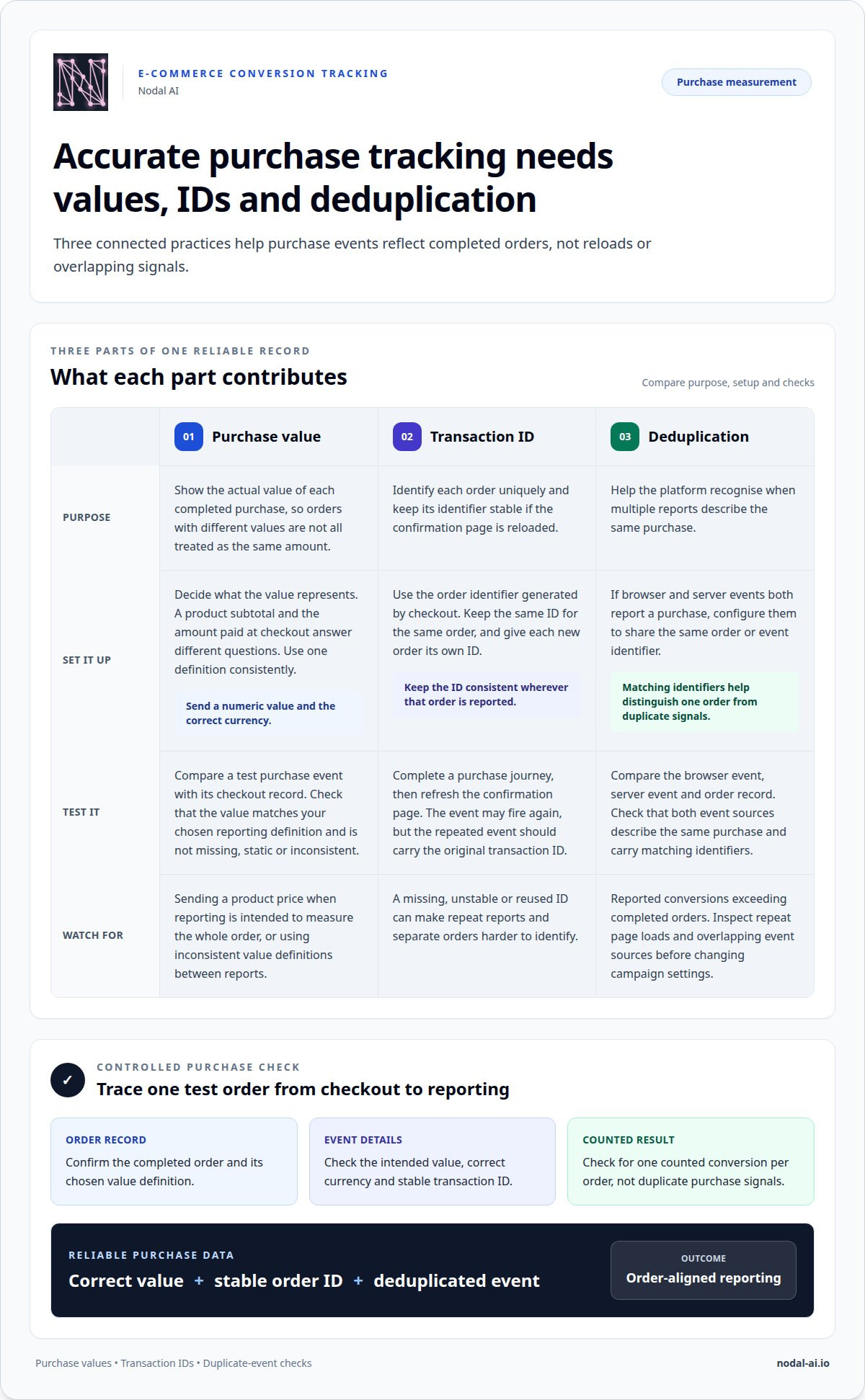
Pass each completed purchase’s value and a unique transaction ID with its conversion event. These details help Google Ads measure sales accurately and avoid counting a reloaded confirmation page as another order.
-
Set e-commerce conversion values
Send the actual value of each completed purchase instead of assigning every order the same fixed amount. For example, if one customer buys a lower-priced item and another buys several products, their purchase events should reflect those different order values.
Decide what the value represents before configuring the event. A product subtotal and the amount paid at checkout answer different questions, so use the same definition across reports. Check that the event sends a numeric value and the correct currency. Don’t send a product price when your reporting is intended to measure the whole order.
Then compare a test purchase with its checkout record. Confirm the event value matches your chosen reporting definition. If it’s missing, static or inconsistent between orders, review the data layer or event parameters that populate it. Consistent values make campaign comparisons more useful.
-
Use transaction IDs
Include a unique transaction ID with each completed purchase event. Use the order identifier generated by your checkout, so a purchase keeps the same ID if the confirmation page reloads. Give each new order its own ID instead of reusing one from another transaction.
Test the behaviour by completing a purchase journey, then refreshing the confirmation page. The event may fire again, but the repeated event should carry the original transaction ID. This lets the measurement platform recognise both reports as the same order, rather than two separate purchases.
Keep the ID consistent wherever the same order is reported. If Google Ads receives purchase data from more than one source, mismatched IDs can make duplicate records harder to identify. Before relying on revenue totals, check that the ID is present, stable and linked to the correct order.
-
Deduplicate conversions
Review how each completed order reaches your analytics and advertising platforms. A browser pixel and a server event can both report the same purchase. If you use both sources, configure them to share the same order or event identifier, so the platform can recognise one purchase instead of two.
Use a controlled test order to compare the browser event, server event and order record. Check that both event sources describe the same purchase and carry matching identifiers. If reported conversions exceed completed orders, inspect repeat page loads and overlapping event sources before changing campaign settings.
After an adjustment, repeat the purchase journey and compare the resulting event with the order record. Check for one counted conversion per order, the intended value and a stable transaction ID. This helps distinguish a genuine sale from a duplicate signal and keeps Google Ads reporting aligned with completed purchases.
Effects of changing conversion-tracking settings
In the United States, consent, privacy and data-retention obligations depend on where a person is, what data is collected and how it’s used. Map those factors, explain tracking clearly, honour applicable choices and set retention around a defined business need.
- Record the existing settings before changing them. Note each conversion action’s name, counting method, attribution model and status in your advertising platform. This gives you a baseline for interpreting changes. For example, if a purchase action changes from secondary to primary, record the change date so later campaign comparisons don’t mix different measurement rules.
- Change one setting at a time. Updating several actions together makes it hard to identify why reported conversions shifted. If you change a form submission from observation-only to a primary action, leave other settings unchanged during the initial comparison. Document the action, previous and new values, and the reason for the adjustment.
- Check how the change affects campaign optimisation. Advertising platforms may use selected primary actions as signals for campaign bidding and reporting. If a low-value page visit becomes a primary action, a campaign could optimise for visits rather than completed purchases. Keep business outcomes distinct and confirm each action represents the result you want campaigns to prioritise.
- Preserve privacy choices in the tracking flow. Identify the data collected by each tag, such as an email address or purchase event, and document its purpose. Make consent controls work with the tags they govern instead of treating a banner as separate from tracking. For example, test what happens when a visitor declines optional tracking, then confirm the event flow reflects that choice.
- Set and review data-retention periods. Choose a retention period that supports a stated analytics need, then remove or anonymise data when it no longer serves that purpose. Avoid keeping identifiable event-level data indefinitely by default. For example, separate aggregated campaign trends from records that can be linked to an individual, and apply the appropriate retention approach to each.
- Compare results across the change date. Annotate when a conversion action or privacy control changes, then compare equivalent reporting periods and campaign conditions. A sudden increase after changing an action may reflect broader counting, not improved sales. Track purchases, qualified leads or another intended outcome separately from intermediate events to keep performance conclusions grounded.
In the United States, obligations depend on a person’s location, the data collected and how it’s used. Explain tracking and honour applicable choices. Make consent controls govern the relevant tags, and retain data only for a defined analytics need. Remove or anonymise it when that need ends, and avoid indefinite retention of identifiable event-level data.
Choosing a conversion window
A conversion window is the time after an ad click during which a conversion can be attributed to that ad. Set it to reflect how long customers typically take to complete the action.
- Start with the conversion action. Identify exactly what the campaign is meant to generate, such as a purchase or registration. A purchase may follow product research, while a simple registration may happen during the same visit. The right window depends on the action and the time customers need to complete it.
- Map the customer journey for that action. Use sales or analytics records to understand the steps between an ad click and a completed conversion. For example, a customer might click an ad, compare products, then return later to buy. Consider the full journey instead of assuming every conversion happens immediately.
- Choose a window that covers typical decision time. Set the attribution period long enough to include the usual gap between click and conversion. If customers commonly return after reviewing product details, a very short window could miss those purchases. If the action usually happens promptly, an unnecessarily long window may make the connection less useful.
- Assess each conversion action separately. Don’t automatically apply one window to every campaign goal. A newsletter registration and a considered purchase can have different decision paths. Match the window to the relevant action, then keep the definition consistent across campaigns you intend to compare.
- Check how the window changes reported results. Compare conversion reports with click and completion dates. A purchase completed after the window closes won’t be attributed to that earlier click under the selected period. If reported conversions seem lower than completed orders, check whether customers typically take longer than the configured window to decide.
- Document the setting before comparing campaigns. Record the conversion action, its window and the date you set or changed it. When campaign reports use different windows, their conversion totals may reflect different attribution periods. Keep that distinction visible in your analysis instead of treating every reported conversion count as directly comparable.
- Review the choice when customer behaviour changes. Revisit the window if changes to your product, checkout or sales process affect how long customers take to act. For example, a new comparison step may lengthen the path from click to purchase. Use observed journey timing to decide whether the current period still captures typical conversions.
Creating conversion triggers
A practical guide to setting up conversion tracking properly starts by defining each business outcome as a distinct event. Match each trigger to the action it should record.
-
Install and configure tracking with Google Tag Manager and Google Analytics 4
Use Google Tag Manager to deploy tracking tags, then configure Google Analytics 4 to record the relevant events. Set a trigger for the precise action, such as a successful form submission, rather than a general page view that may fire repeatedly.
Keep event names and parameters consistent between the tag and GA4. Test the journey from the landing page through completion, then confirm the expected event appears once. Avoid publishing multiple tags that send the same event under different names.
-
Track form, purchase, phone, and offline conversions
Choose a trigger that matches how each action happens. For a form, track successful submission rather than a button click. For a purchase, track the completed order event. Track phone calls as completed calls, not just clicks on phone numbers. Connect offline outcomes to their originating leads when the available data supports that match.
Keep each conversion type distinct. A form start isn’t a submitted lead, and a call click isn’t a completed call. Test each path with an example journey, then confirm the recorded event reflects the completed action.
-
Configure events, values, windows, and counting methods
Choose an event name that describes the action, then add a value when the outcome has measurable value. Set the attribution window to reflect the typical time between an ad interaction and conversion. Select a counting method suited to the action, such as counting a lead once or recording each completed purchase.
Keep these settings aligned. A purchase event with a fixed lead value can misrepresent order revenue, while a short attribution window may exclude delayed conversions. Your conversion-tracking setup should reflect the outcome each campaign is meant to measure.
For new app users, count either app installs or first opens as a conversion, not both. An install records the download; a first open records the initial app launch, so counting both can inflate results.
Build clearer campaign decisions with performance marketing analytics.
Nodal AI
Nodal AI helps turn conversion data into a clearer view of marketing performance. If tracking is in place but campaign results remain fragmented, its Performance Marketing Analytics can help connect performance signals with customer journeys. The Nodal Platform, Automated Reporting and Growth Recommendations support analysis and decision-making, helping teams focus on what the data indicates instead of piecing reports together manually.
This is a natural next step when you need to understand how tracked actions relate to wider campaign performance or identify where the customer journey needs closer analysis. For a clearer view of your marketing data, contact Nodal AI.
Make measurement part of your next decision
Treat measurement as a decision system, not a box to tick. As priorities and customer journeys evolve, assign an owner to keep conversion definitions aligned with the outcomes your team needs to understand. A sound conversion-tracking setup gives that owner a stronger foundation for turning useful signals into decisions.
Use the data to question assumptions, prioritise future experiments and identify where deeper analysis could sharpen your plans. As you refine your conversion tracking, focus on whether each insight helps your team decide what to do next, not simply on collecting more information.
When fragmented marketing data makes that difficult, Nodal AI can help turn performance signals into actionable intelligence. Its analytics and recommendations support a more connected view of marketing performance and help your team move towards clearer decisions.
Keep learning from the data, and let each clearer decision build momentum.
Frequently Asked Questions
What is a conversion in general?
A conversion is a meaningful action someone completes after interacting with your business. The action depends on your goal: an online retailer may count a completed order, while a consultancy may count a qualified enquiry. Not every interaction needs to count as a conversion. A product-page view can provide useful context, but it usually represents an earlier step than a purchase.
What counts as a conversion for my business, and which actions should I track?
Track actions that show progress towards a business goal, and distinguish completed outcomes from early signals. An online shop might prioritise completed purchases, then monitor basket additions as a separate diagnostic event. A lead-generation business could prioritise qualified form submissions or booked appointments. Choose actions your team can use to assess performance rather than counting every click as equally valuable.
How can I test and verify that conversion tracking is firing accurately?
Test a complete journey in a controlled session, then compare the recorded event with the outcome in your business system. For a lead form, confirm the submission appears in both analytics and the lead-management record. Check event names, page details and timestamps for unexpected repeats or gaps. If results differ, isolate the step where the journey stops matching instead of changing several tags at once.
How do I prevent duplicate conversions and reconcile discrepancies between analytics and ad platforms?
First compare like with like: use the same conversion action, reporting period and attribution settings in both platforms. Then check whether overlapping tags or integrations report the same outcome. Order records or CRM entries can help identify completed outcomes. Differences may remain because platforms use different attribution methods and reporting rules, so analyse trends and definitions rather than expecting identical totals.
What are common conversion-tracking errors and how do I troubleshoot them?
Common problems include a trigger tied to the wrong page, an event firing on a button click instead of successful completion, and inconsistent event names across tools. Start by reproducing the journey and locating the first missing or unexpected event. Then inspect the relevant trigger and event parameters. For example, confirm that a form’s success state, not just a submit-button interaction, generates the conversion.
How often should I audit conversion tracking, and what metrics should I monitor?
Audit tracking after changes to your website, checkout, forms, tags or analytics integrations, and include it in routine campaign reviews. Monitor cost per conversion, conversion rate and return on ad spend alongside completed sales or qualified leads. If a metric shifts, check whether the underlying action or reporting setup changed before interpreting it as a campaign result. This keeps performance decisions grounded in comparable data.


